Demand Management
Use the Plan tab to manage demand in calendars. Import, display and adjust critical demand and target demand so that you can deploy the right people in the right place at the right time.
- Critical demand is the minimum staffing needed to achieve service targets.
- Target demand is the minimum staffing needed plus allowance for training, holidays, attrition and absence.
To manage demand:
- Open the Plan tab.
- Select a work area or add a new work area. Each shift is held in a work area and a calendar. For example, work areas could be ‘London’, ‘Manchester’ and ‘Birmingham’.
- Select a calendar or add a new calendar. Each calendar holds team shifts made up of employees. Within ‘Manchester’, list calendars for ‘Headquarters’ and ‘Factory’.
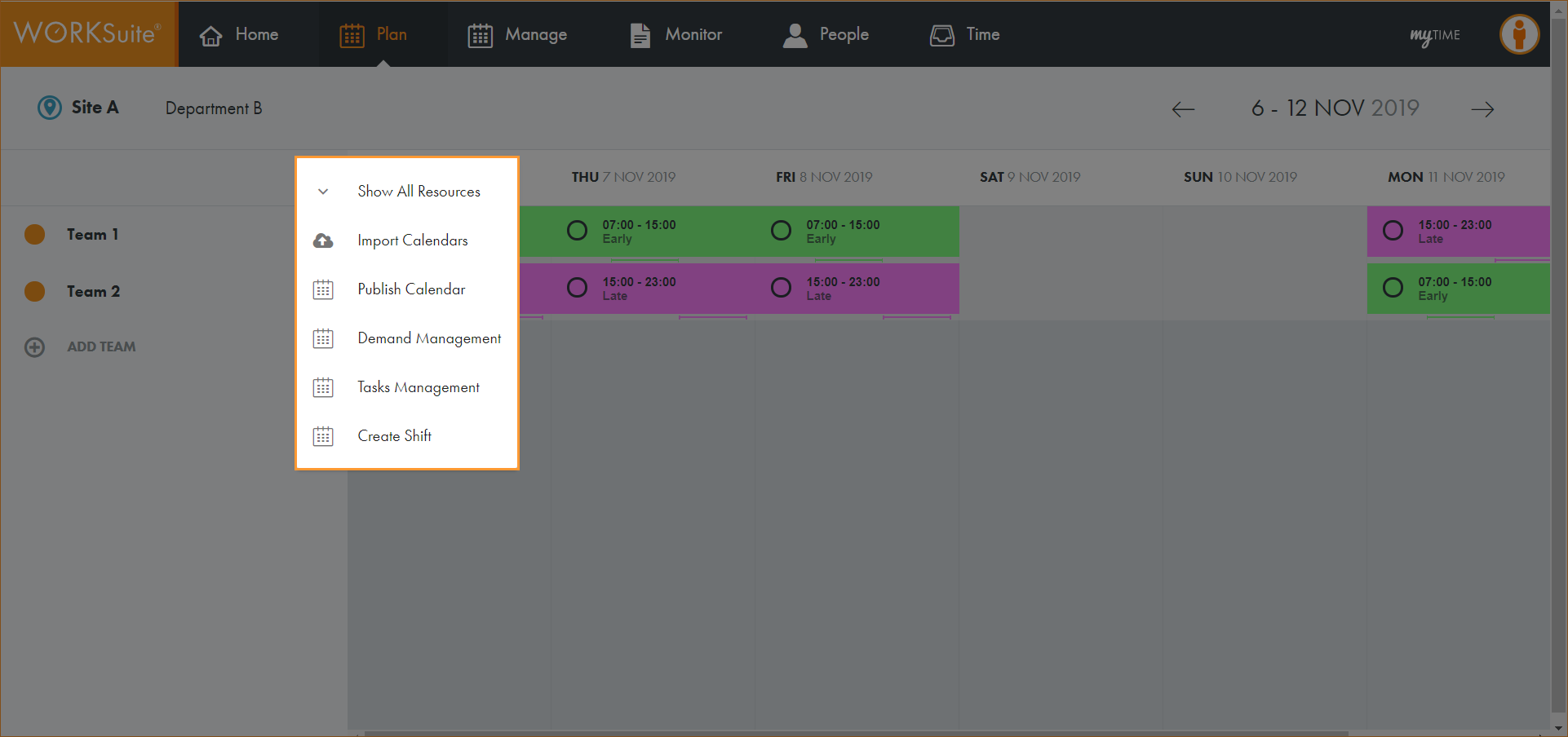
- Click … in the calendar header:
- Select Demand Management.
- Use the date selection tools in the top right to select the dates that you want to work with. Choose to work with a single day or any range of dates.
The Demand Management screen is displayed:
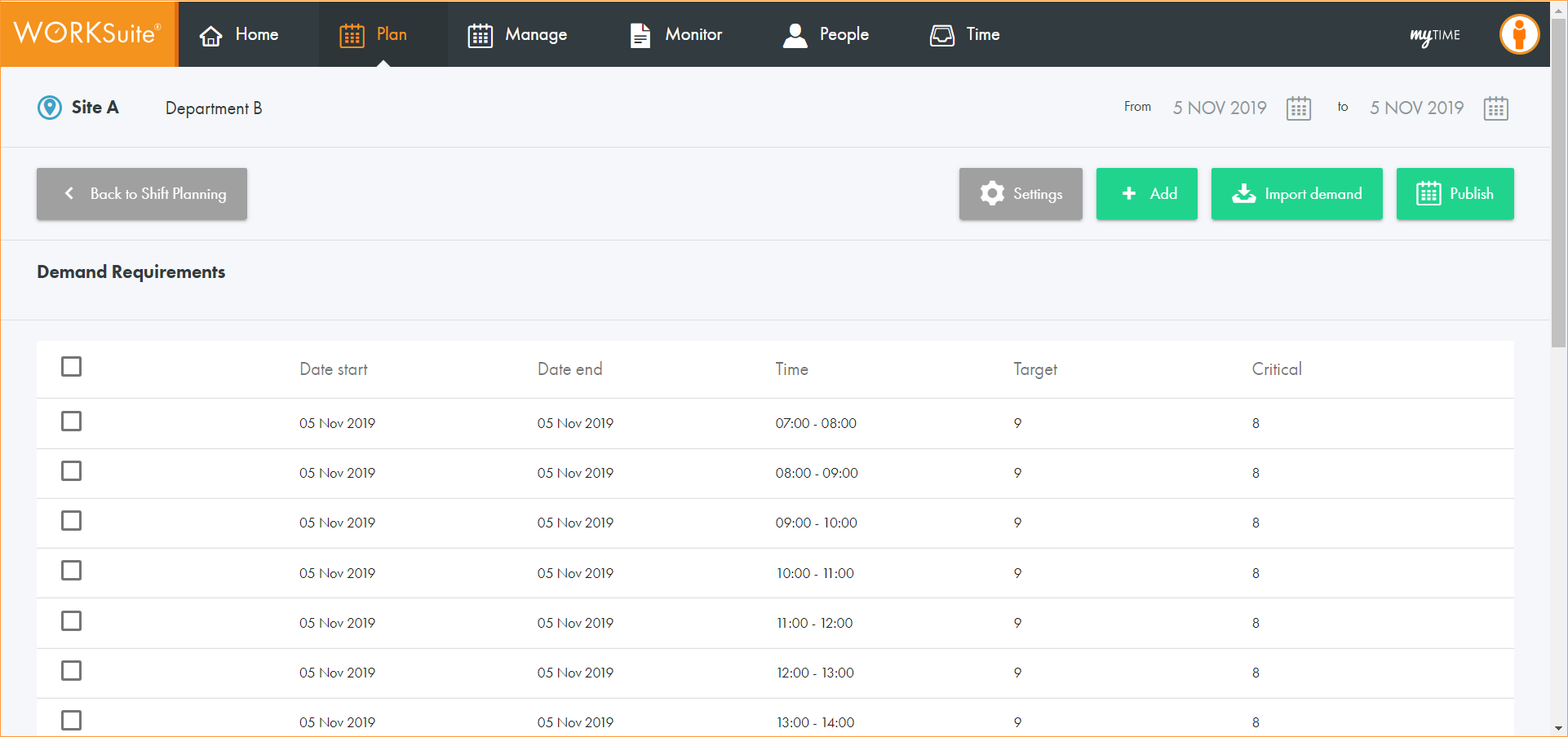
Demand for each interval (in this case each hour) is listed. Both target demand and critical demand is shown.
- Choose to:
 Manage settings for demand management.
Specify how demand is calculated.
- Select Settings to display the Demand Settings popup window:
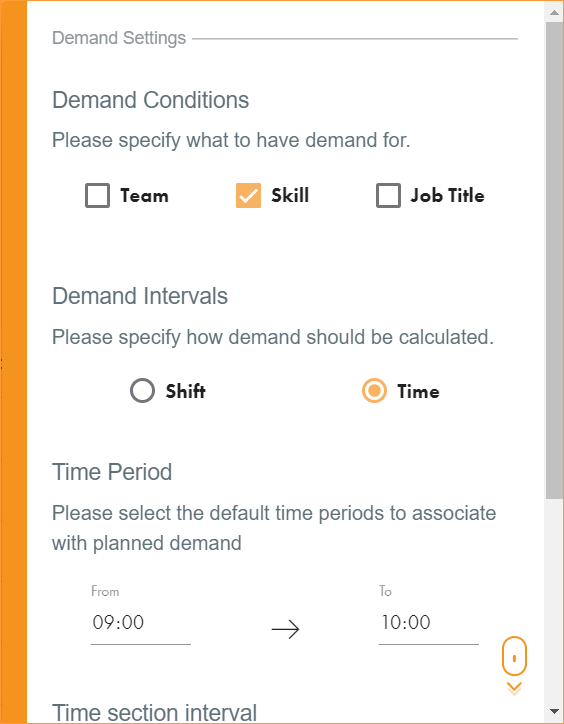
- Demand Conditions. Select whether the demand is for a Team, Skill or Job Title.
- Demand Intervals. Specify if demand is calculated by Shift or Time. Selecting Shift simplifies demand planning and analysis for the selected calendar period by reducing the number of intervals in view to only the shifts which are worked.
- Time Period. This is only used if Time is selected for Demand Intervals. Set the default time periods for demand.
- Time section interval. This is only used if Time is selected for Demand Intervals. Select the size of each time section block.
- Click Save.
Add demand.
This feature is still in development. Use the import feature to add demand.
Modify current demand.
- Use the checkboxes next to the demand requirements that you want to modify. Check the box at the top of the list to select all of the demand requirements listed:
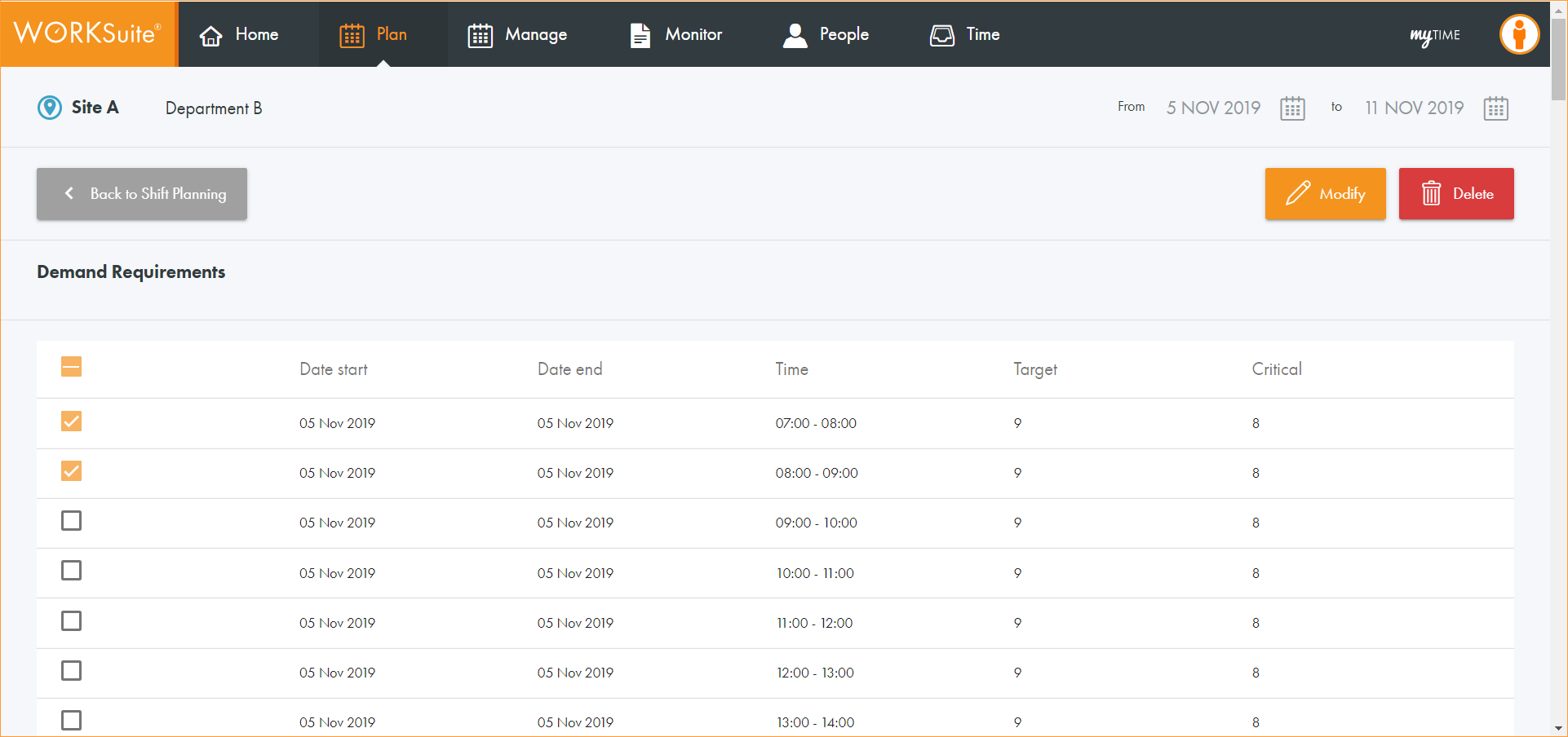
- Click Modify in the top right to edit your selection.
The Modify Demand Requirement window is displayed:
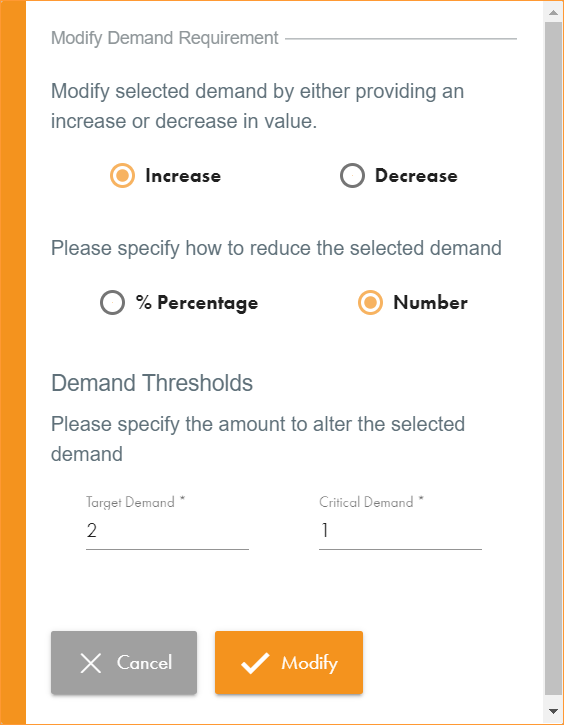
- Choose to either Increase or Decrease demand.
- Specify to change the selected demand by either % Percentage or Number.
- Demand Thresholds. Specify the amount to alter target and critical demand requirements.
- Click Modify the selected demand requirements are updated.
Import demand.
- Click Import demand
- Once the import file is ready, either:
- Drag the file into the popup window.
- Click browse to select the file.
- Click away from the popup window when the upload indicates 100% to return the Demand Management screen.
A popup window is displayed:
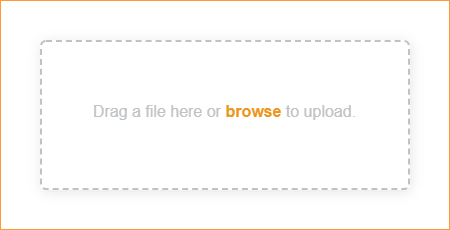
The import file needs to be in .csv format. Click here to see an example.
or
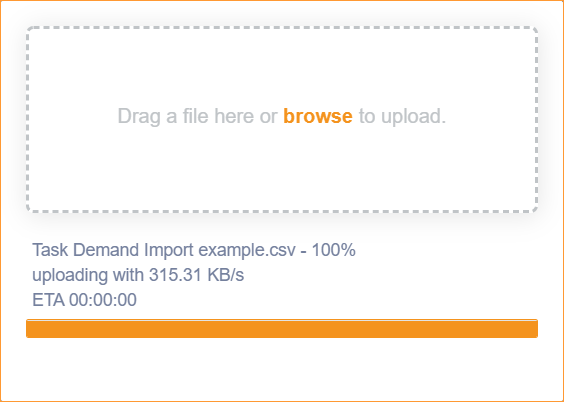
Publish demand.
This feature is still in development.